Why Sellmitra is the Best Shopify Alternative in India
Compare Sellmitra and Shopify to find the right ecommerce platform for your business. Learn about pricing, mobile-first features, zero commission, and Indian-focused tools.

When people search for your brand on Google, your Google Business Profile shows up — with star ratings, reviews, and location info. This creates your first impression.
Even if you're a fully online business, reviews build trust and help customers feel confident in buying from you.
A Google Business Profile (formerly Google My Business) is a free listing that appears in Google Search and Google Maps. It includes:
Even if you don’t have a physical store, you can set up your profile as a “Service Area Business” or “Online Business.”
Verify your business via email, phone, or postcard
Once verified, your listing can appear in search results with a "Write a Review" button.
Send a message (email, WhatsApp, or SMS):
“Thanks for your purchase! We’d love your feedback — could you leave us a quick review on Google?”
Pro Tip: Add your review link using this tool to create a direct URL.
Example:
While Google discourages fake reviews or paid ones, you can ethically motivate customers:
“Leave a review and enter our monthly giveaway!”
Just don’t force or filter only 5-star reviews — let it be honest.
If you ever sell in person (pop-ups, markets, delivery packaging), use a QR code that links to your review page.
Google favors businesses that actively engage. Respond politely, thank the user, and resolve issues where possible.
If customers say:
“Best organic skincare brand in Mumbai,”
It helps SEO!
You can encourage this by saying:
“We love detailed feedback! Feel free to mention what you bought and your city — it helps others too.”
Reach out to past happy buyers or micro-influencers and ask if they’d be open to reviewing you on Google.
| Mistake | Why It Hurts |
| Buying fake reviews | Google may remove them or suspend your profile |
| Not verifying your profile | It won’t appear in searches |
| Ignoring reviews | Reduces trust and ranking |
| Using wrong category | Affects visibility in search |
To create and share a link or QR code:
Most customers won’t search for your business to leave a review. But if they can simply scan a QR code and land directly on the review page, there’s zero friction.
Friction = lost opportunity
QR codes remove the friction.
The best time to ask for a review is:
A QR code placed on a bill, product packaging, or thank-you card prompts immediate action.
When people are happy with your service, they’re more likely to leave positive feedback — but only if you make it convenient. A QR code increases the chance they’ll do it right away.
If you operate a physical store, pop-up, or do offline deliveries (like D2C), QR codes help convert offline buyers into online promoters through Google reviews.
Google uses review quantity and quality as a ranking factor in local SEO. More reviews can:
You don’t need an app, expensive tech, or marketing agency. Just:
| Location | How to Use |
|---|---|
| Invoice / Bill | Add “Review us on Google” with QR code at bottom |
| Product Packaging | Include QR on thank-you cards or inside box flap |
| Delivery Bag / Label | Stick printed QR code on outside of delivery packet |
| Freebie or Brochure | QR printed with a message: “Your feedback means a lot!” |
| Receipt Emails (if printed) | Add a QR code at the footer or side |
| Retail Counter / Stall | QR standee or tent card for on-the-spot feedback |
If you want to increase your online store’s visibility, Google Reviews are your best free tool. They improve trust, search ranking, and conversion — all without spending money on ads. Start small: set up your Google Business Profile today, and ask every happy customer for a 30-second review.

Join our WhatsApp channel for quick tips, product updates, and ideas to help you grow your online store efficiently.
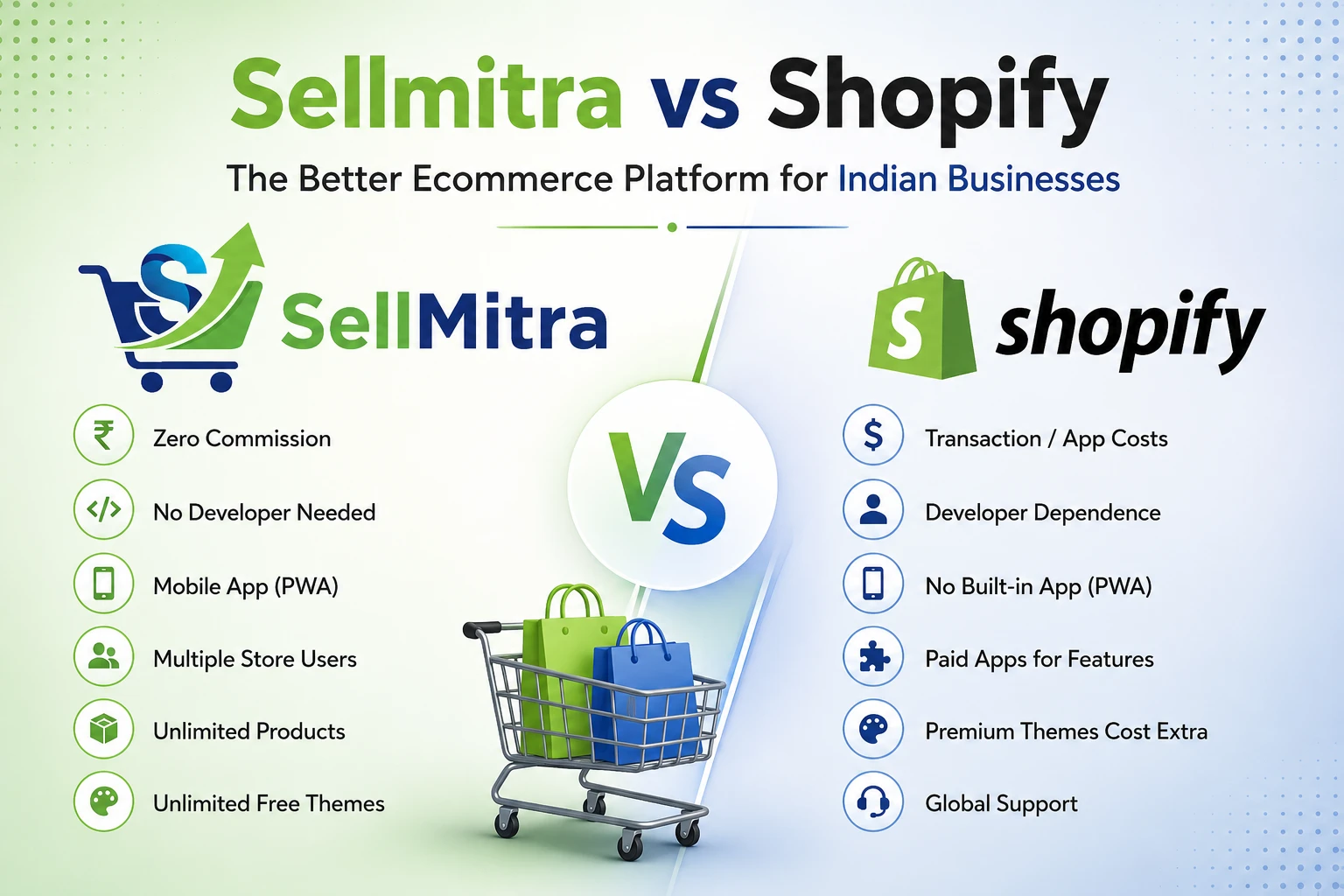
Compare Sellmitra and Shopify to find the right ecommerce platform for your business. Learn about pricing, mobile-first features, zero commission, and Indian-focused tools.

Discover why mobile apps are transforming ecommerce in India. Learn the benefits of PWAs, mobile commerce trends, and how they help grow sales.

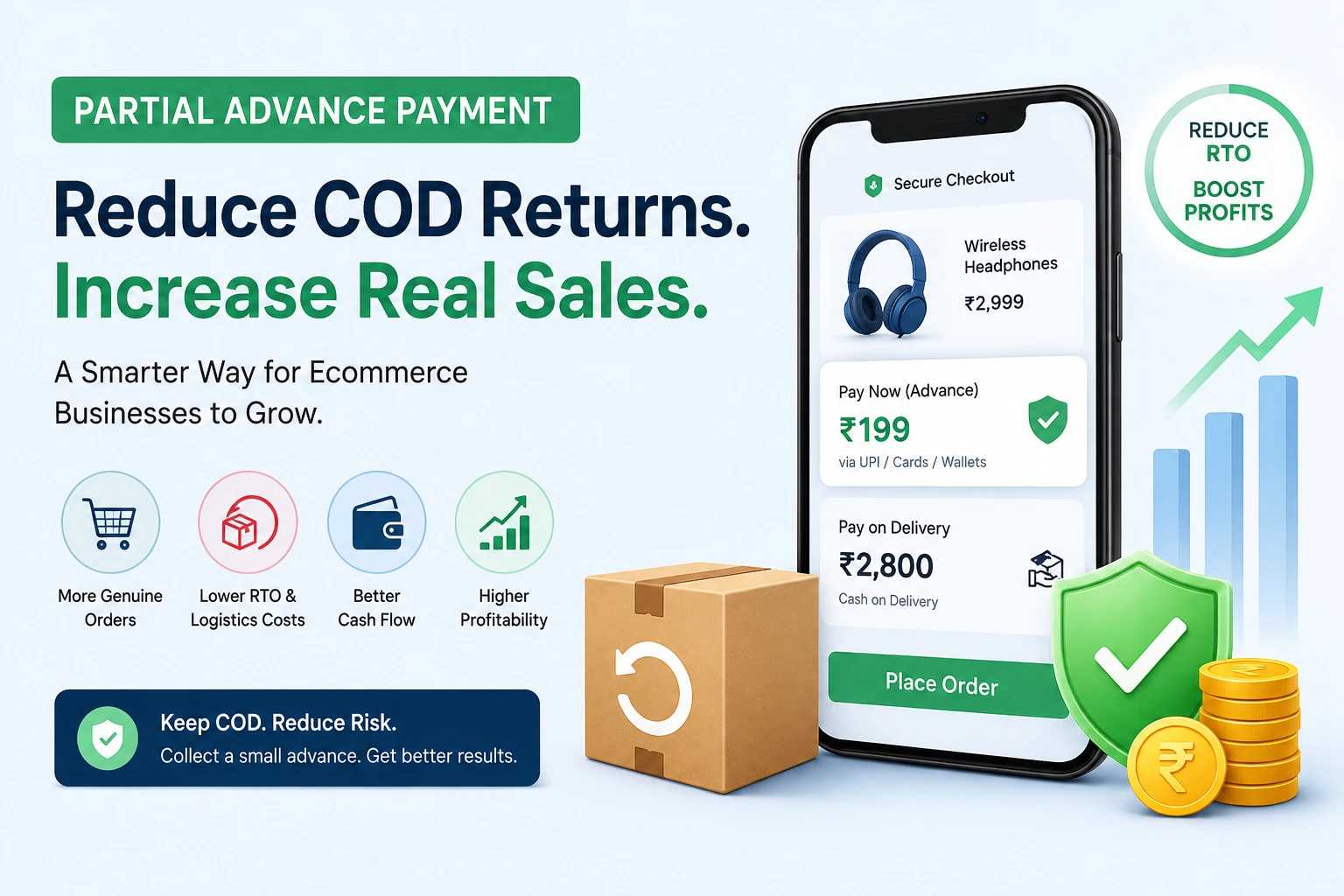
Learn how Partial Advance Payment helps ecommerce businesses reduce RTO, improve cash flow, increase genuine orders, and build customer trust without removing Cash on Delivery.
We can help you to create your dream website for better business revenue.